
Modern Git workflows aren’t just about branches anymore. With AI agents generating changes in parallel, it’s becoming normal to have multiple working copies, multiple ideas, and a lot more to review.
Whether it’s experimenting in separate worktrees, reviewing an AI-generated patch, or untangling a feature branch with dozens of commits, understanding how changes relate to each other is becoming just as important as seeing the changes themselves.
With Kaleidoscope 6.7, we’ve focused on exactly that: helping you navigate and understand complex changesets in modern Git workflows.
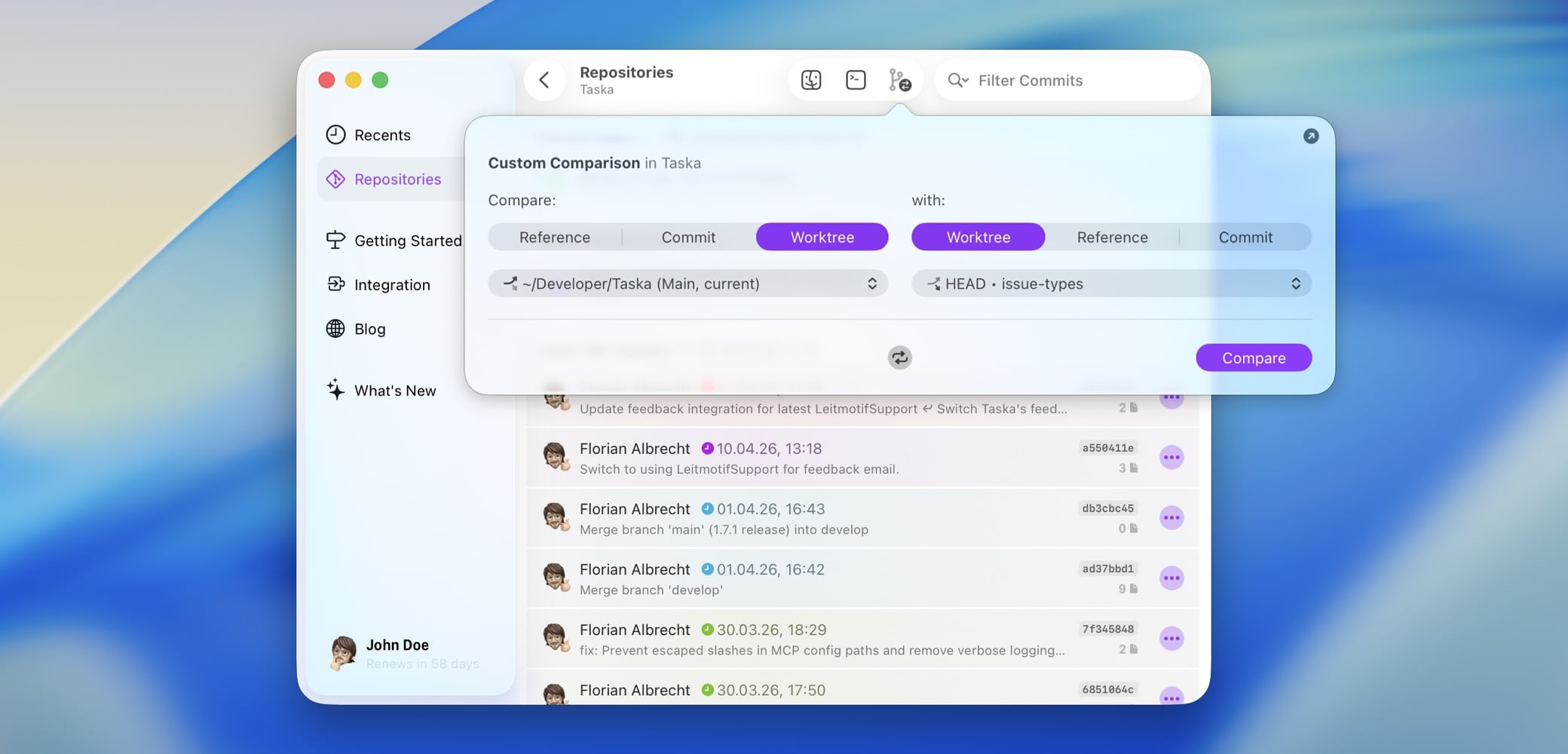
Git Worktrees
One place where this shift becomes very real is Git worktrees. They’ve been around for a while, but are easy to miss. Instead of cloning a repo multiple times, you can have several working directories attached to the same repository, each on its own branch.
That turns out to be exactly what you want when working in parallel. Whether that’s you juggling tasks, or an AI tool generating changes in the background.
Up until now, Kaleidoscope didn’t handle this well. Opening files from different worktrees could get confusing, and comparing them wasn’t really something you could rely on.
In Kaleidoscope 6.7 we changed how worktrees are handled. Kaleidoscope now sees them as part of your local repository clone. You can open files from different worktrees without surprises, and you can compare them directly, between worktrees, against branches, or any other reference.
If you’re reviewing changes coming from different sources (including AI tools), this makes a noticeable difference.
Outline in the Changeset Sidebar
The changeset sidebar has always been a flat list of files. Once a changeset gets big and deep enough in structure, the list stops being helpful and starts being something you scroll through.
A lot of you asked for a way to see changes in the structure they actually live in. So we added exactly that. You can now switch the sidebar to an outline view that mirrors your repository structure. Same data, just organized in a way that’s easier to navigate.
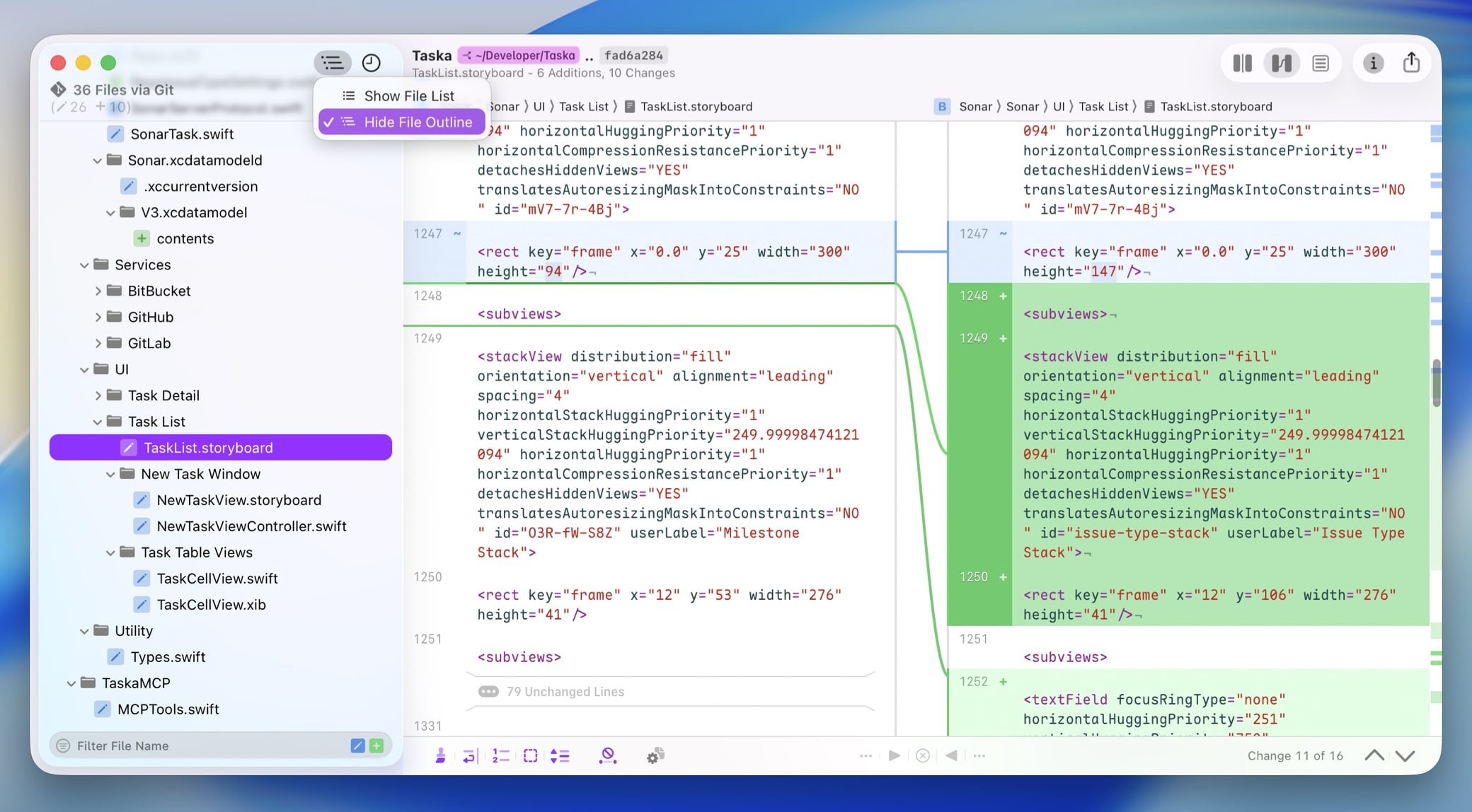
There’s a toggle in the sidebar, and a setting if you want to make it the default. Everything else stays the same: context menus, filters, all of it. Just less friction finding your way around.
Commit History of a Changeset
This is the biggest change in 6.7. So far, Kaleidoscope has shown you the result of a changeset. If a branch had ten commits, you’d see what those ten commits produced, but not the commits themselves. That’s how git diff (and git difftool) works and it’s very helpful already. But now, in addition to that you can also see the full commit history of a changeset directly in the sidebar.
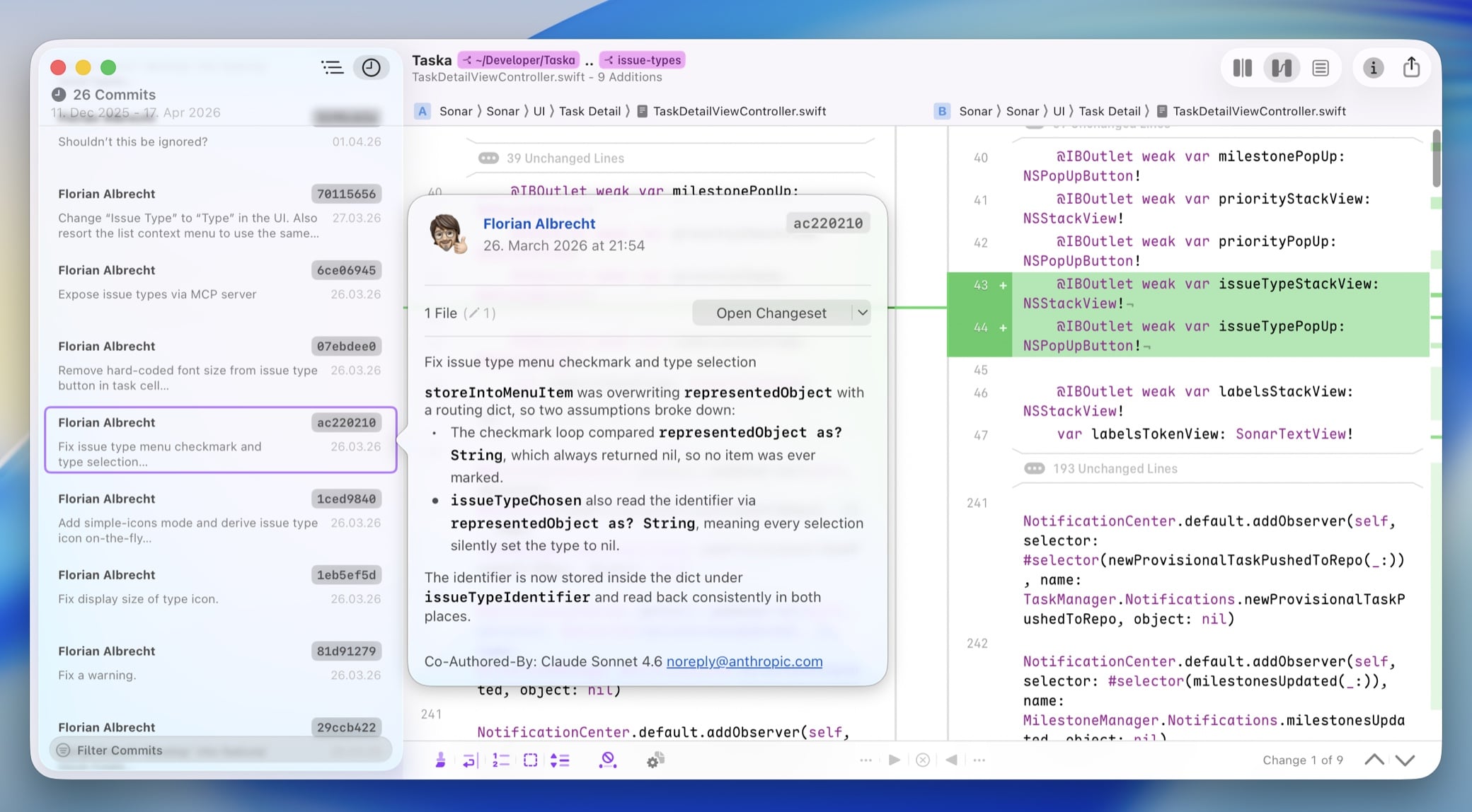
That means:
- all commits in order
- proper commit messages
- the ability to open any commit as its own changeset
So instead of guessing how something ended up the way it is, you can just follow it step by step.
Why this matters (especially with AI tools)
If you’re working with AI-generated changes, this becomes a lot more than a convenience. Those changes often come in separate branches or worktrees, and they’re rarely a single clean commit. You get iterations, rewrites, partial ideas.
Being able to compare worktrees, navigate large changesets, and inspect the commit history makes that kind of review much more manageable.
Which happens more often than it used to.